
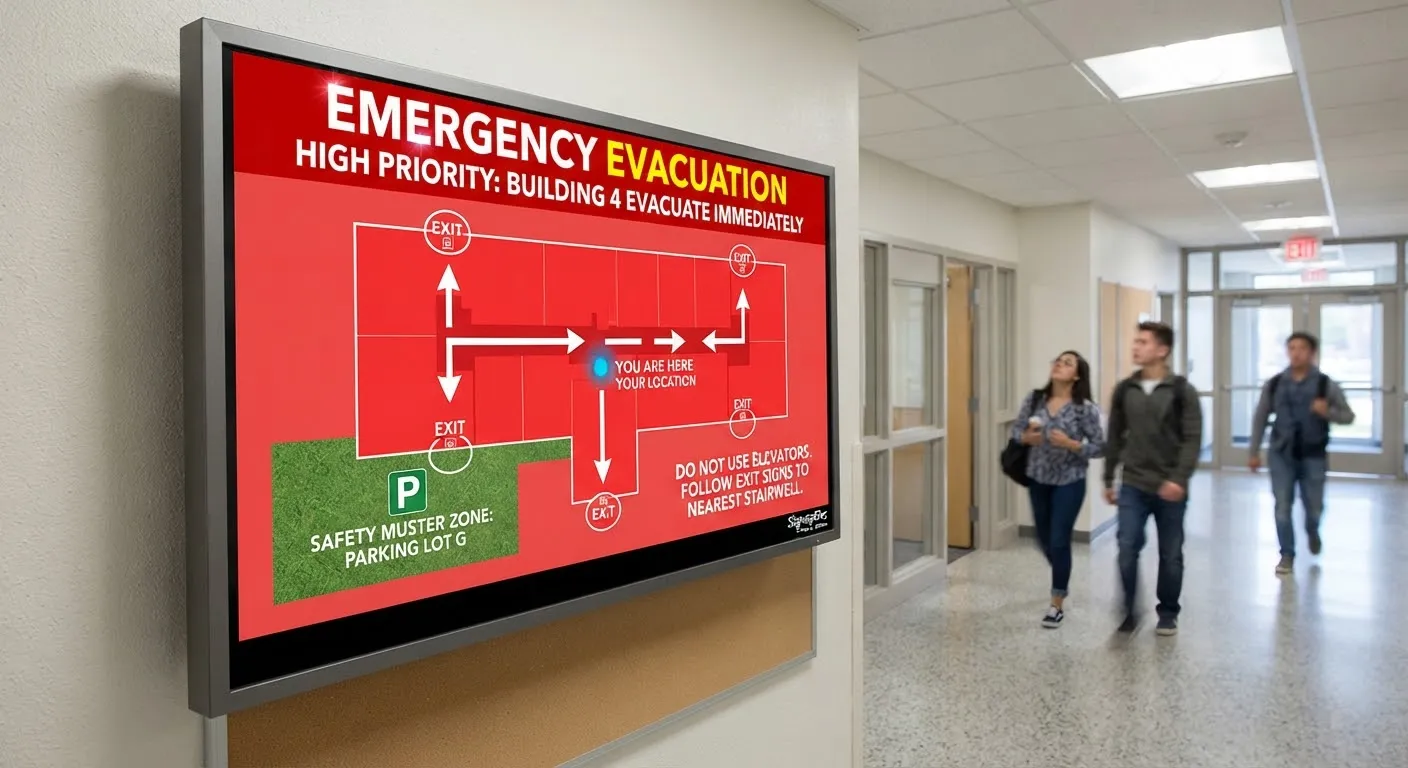
Schools, colleges and universities often have screens in receptions, corridors, libraries and canteens, showing timetables, events and notices. In an emergency, those same screens can become one of the fastest ways to reach everyone on site. Planning for this in advance makes all the difference.
Why use screens for emergency messages?
During an incident, people need clear instructions quickly. Fire alarms and public address systems tell people that something is happening, but not always what to do. Screens can show:
- What has happened, in plain language.
- Exactly what people should do, such as evacuate, stay indoors or avoid a building.
- Where to go, including assembly points and safe routes.
- When it is safe to return to normal.
Visual messages also help people who are deaf or hard of hearing, or who are in noisy areas where announcements are hard to hear.
How emergency alerts work on digital signage
With a cloud CMS, authorised staff can trigger an alert that overrides normal content on selected screens or every screen at once. When the incident is over, the alert is cleared and normal content returns.
Alerts can be triggered in several ways depending on your systems:
- Manually, from a computer or phone by an authorised member of staff.
- From another system, where your signage software can connect to an existing notification or alarm system.
Whichever approach you use, test it regularly so you know it works when needed.
Prepare your messages in advance
The worst time to design an alert is during an emergency. Create templates now for the situations you plan for, for example:
- Fire evacuation: leave the building by the nearest exit and go to your assembly point.
- Lockdown or shelter in place: stay where you are, follow staff instructions.
- Severe weather: campus closing early, travel advice.
- Building closure: a building is closed, with alternative locations.
- All clear: the incident is over, normal activity can resume.
Use a distinctive design, such as a red background and large white text, so alerts are instantly recognisable and cannot be mistaken for normal content.
Writing good alert messages
- Lead with the action. “Evacuate now” is more useful than a description of the problem.
- Keep it short. Two or three short lines are enough.
- Be specific. Name buildings, exits and assembly points people will recognise.
- Avoid jargon. Students, visitors and contractors may not know internal names or codes.
- Include a time. Showing when the message was issued helps people know it is current.
Practical considerations
- Who can trigger alerts. Limit this to trained staff, with user permissions in the CMS, and make sure more than one person can do it.
- Screen coverage. Check where your screens are. Corridors, entrances, canteens and libraries reach the most people.
- Power and network. Consider what happens to screens during a power cut or network outage, and do not rely on screens alone.
- Part of a wider plan. Screens should support, not replace, alarms, announcements, staff procedures and messages to phones.
Test, review and improve
Include your screens in regular fire drills and emergency exercises. Check that alerts appear on every screen you expect, that the messages are readable from across a corridor and that clearing the alert returns screens to normal. After each drill or real incident, ask what could be clearer and update your templates.
The rest of the time
Most days, the same screens show timetables, events, wellbeing information, achievements and room changes, keeping students and staff informed and reducing paper notices around campus.
Getting started
SignageTec works with schools, colleges and other organisations on campus screens and the software to manage them. Explore our displays and software, see our work in education, or contact us to discuss your campus.