
Manage Every Screen in Every Branch from One Dashboard
Whether you run three shops or a national chain, SignageTec puts every screen in every branch into one cloud dashboard. Update prices, menus and campaigns once, and they appear everywhere they should, on time, without anyone in the branch touching a screen.
What is multi-site digital signage?
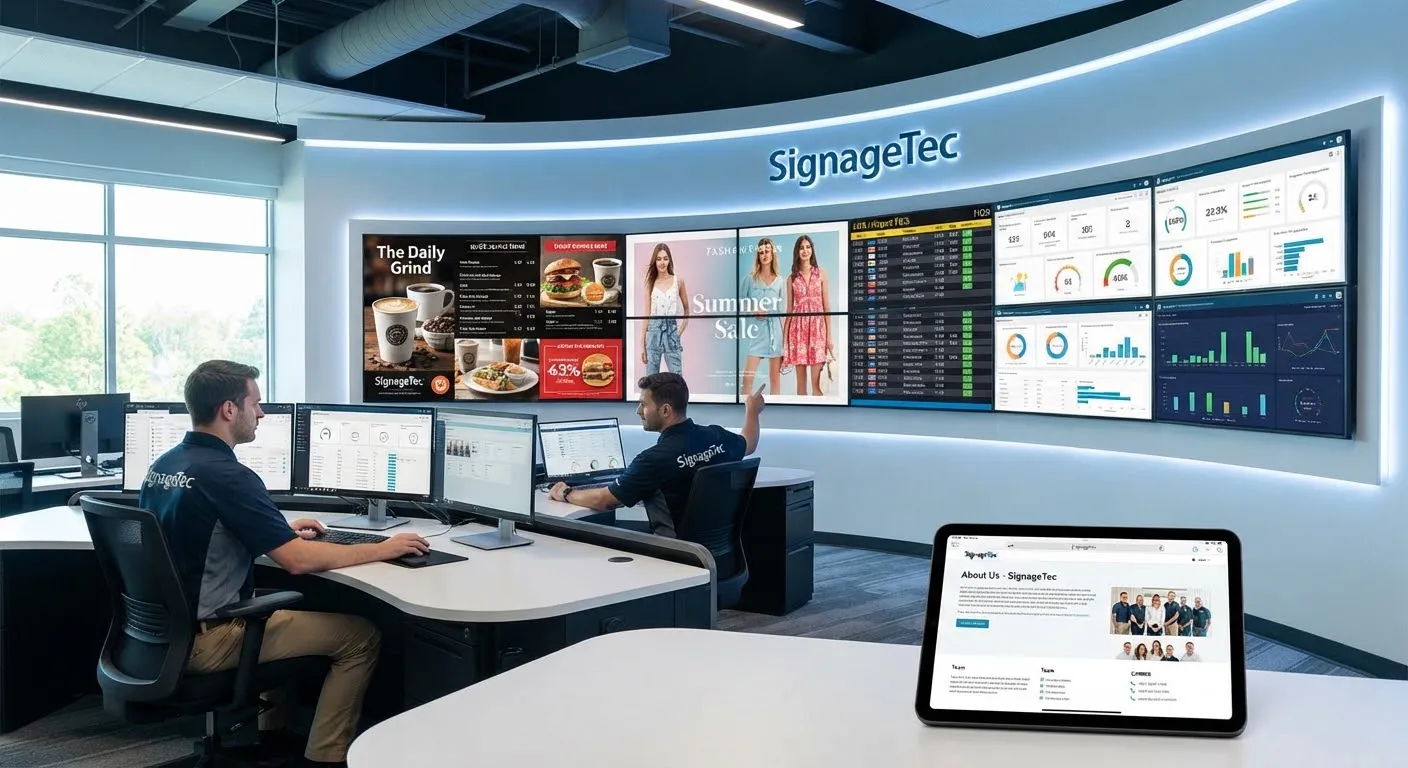
Multi-site digital signage is a way of running the screens in many locations from one central system. Every screen connects to cloud software over the internet, so head office can send content to one branch, a region or every site at once, schedule what plays when, control who can publish, and check from one dashboard that every screen is online.
Built for businesses with more than one site
Restaurant and takeaway chains
Change a price or launch a new item on every menu board in minutes.
Currency exchanges and banks
Show the same approved rates in every branch at the same time.
Estate agent networks
Run window screens in every office from head office, with local listings per branch.
Retail chains and franchises
Launch campaigns everywhere on the same day while keeping the brand consistent.
What you can do from one dashboard
Screen groups
Organise screens by region, city, branch and screen type, then send content to any group.
Scheduling and dayparting
Menus and campaigns switch automatically by time, day and date in every branch.
Head office approvals
Branch editors draft local content and head office approves it before it goes live.
Brand templates
Lock logos, fonts and layout so every branch looks the same.
Remote monitoring
See which screens are online, view proof-of-play screenshots and restart players remotely.
Offline playback
Screens keep playing their last content if a branch loses internet, then catch up.
Getting your branches set up
- 1Put every screen on one account, even if the hardware differs from branch to branch.
- 2Name screens by branch and position (for example "Leeds – Window Left") and group them on day one.
- 3Decide who owns prices, campaigns and local content, and set roles and approvals to match.
- 4Start with one or two branches, then add the rest. New screens pair with a 6-digit code.
How we deliver your project
Step 1
Free consultation
Tell us about your site and goals. We recommend screens, software and set-up to suit your budget.
Step 2
Supply (optional)
Commercial displays, mounts and media players, specified for your location, if you need them.
Step 3
Installation
Fitting, connection and testing, arranged around your opening hours. Already have an Android TV? Install our app yourself.
Step 4
Content and support
We help set up your first content in the cloud software and support you afterwards.
Frequently asked questions
Do all branches need the same screens?
No. One account can run Android TVs, Fire TV Sticks, Windows players, Raspberry Pi and Samsung or LG commercial displays side by side.
Can a branch show its own content?
Yes. You can send content to a single branch, or give branch staff a local area of the screen, with head office approval if you want it.
What happens if a branch loses internet?
Content is stored on each player, so the screen keeps playing the last content it received and picks up changes when the connection returns.
Can I try it before rolling out?
Yes. Start a 14-day free trial on screens you already have, or ask us for a demo for your branches.
Get a quote for multi-site screen management
Tell us about your site and what you want your screens to do. Our London team will recommend the right displays, software and installation.