When you have one shop, updating a screen is easy. When you have five, twenty or a hundred branches, it gets hard fast. Someone has to make sure every window, menu board and counter screen shows the right prices, the right offer and nothing out of date. Done by hand, with USB sticks or a different system in each branch, it rarely stays right for long.
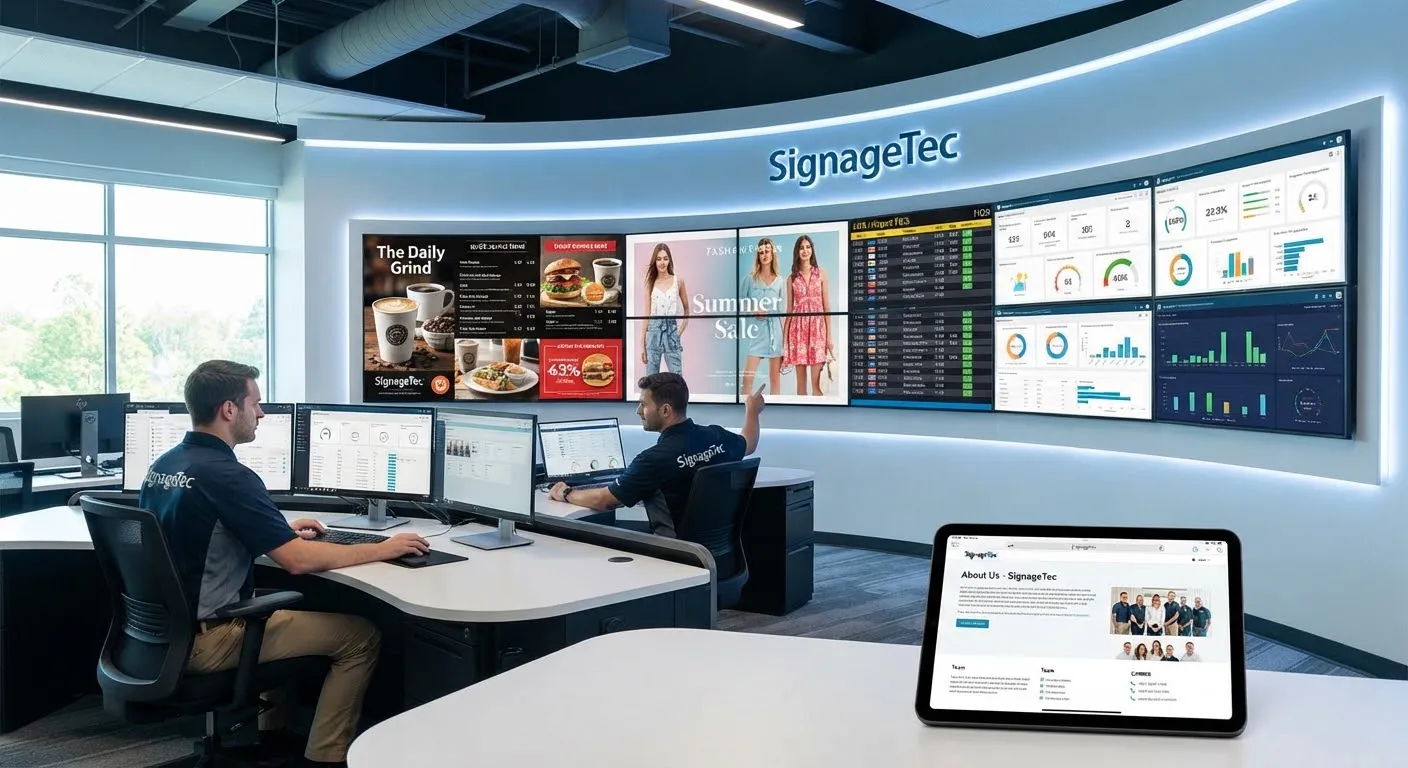
A cloud digital signage system solves this by putting every screen, in every branch, into one dashboard. This guide explains how that works in practice and how to set it up so it stays easy as you grow.
What “one dashboard” actually means
With cloud software, each screen runs a small player app (on an Android TV, a media player or a commercial display). The app connects to your account over the internet. You log in to the dashboard from any web browser and see every screen you own, wherever it is.
From there you can:
- Upload content once and send it to one screen, a group of screens or every screen.
- Schedule what plays where and when.
- See which screens are online and what they are showing.
- Restart a screen or change its settings without visiting the branch.
Nobody in the branch needs to touch the screen for any of this. For the screens themselves, see how cloud digital signage software works.
Step 1: Organise your screens into groups
The single most useful thing you can do is organise screens well on day one. Most multi-site businesses group screens in a few ways at once:
- By location: country, region, city and branch. “All London branches” or “Manchester Piccadilly”.
- By screen type: window screens, menu boards, counter screens, staff room screens.
- By format: branches with a drive-thru, airport sites, franchise sites.
Then you send content to a group rather than to individual screens. A new summer campaign goes to “all window screens”. A price change goes to “all menu boards in England”. A notice about a car park closure goes to one branch.
When you open a new branch, you pair its screens, add them to the right groups and they start showing the right content straight away.
Step 2: Use layouts and templates for consistency
A template fixes the parts of the screen that should never change: your logo, colours, fonts and where everything sits. Content then flows into the template.
This matters more with many branches. Without templates, every branch ends up with a slightly different look. With them, a customer sees the same brand in Leeds as in Bristol, and head office can update the design for everyone in one go.
Layouts can also split the screen into zones. For example, a large area for promotions, a strip for prices or rates, and a corner for the time. Each zone can be fed from a different playlist.
Step 3: Decide who can change what
The biggest risk with many sites is not technology. It is people changing things they should not, or nobody being sure who owns what. Set up roles before you roll out:
- Head office controls brand campaigns, prices and templates.
- Regional managers can schedule content for their own branches.
- Branch staff can add local content, such as a community event or a “now hiring” notice, in a zone set aside for it.
With role-based approvals, a branch can draft content and head office checks it before it goes live. That keeps local content possible without letting a branch publish something off-brand or wrong.
Step 4: Schedule once, run everywhere
Scheduling is where multi-site management saves the most time. You set the rules once and every branch follows them:
- Dayparting: breakfast, lunch and evening menus switch automatically.
- Campaign dates: a promotion starts at 6am on Friday and ends at midnight on Sunday in every branch, with no one remembering to take it down.
- Local timing: branches with different opening hours can switch on and off on their own timetable.
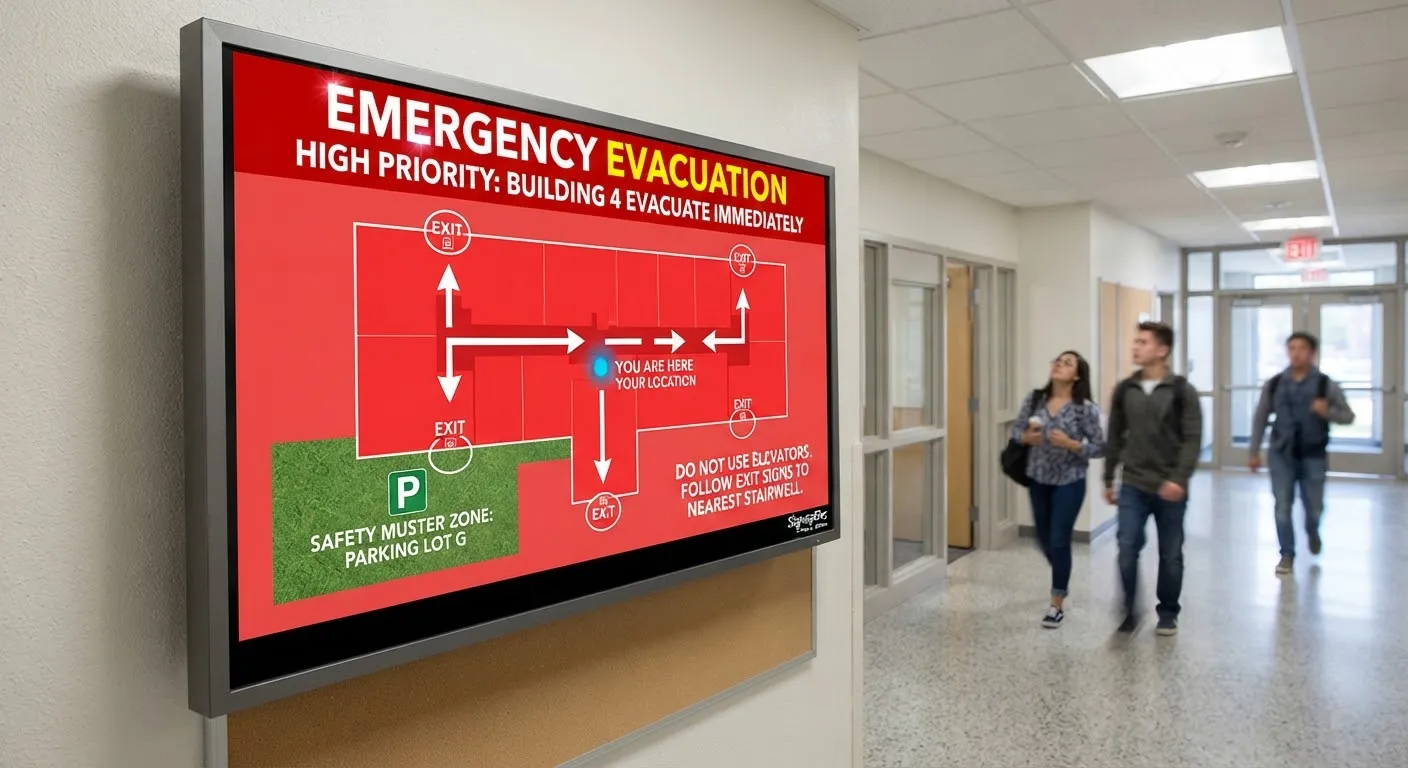
- Priorities: an urgent message can take over all screens, then the normal schedule resumes.
Our guide on scheduling content across locations goes into more detail.
Step 5: Monitor from head office
Once you have more than a handful of screens, you will not hear about a problem from the branch. A screen can sit blank behind a counter for days. Monitoring fixes that:
- An online/offline status for every screen.
- Proof-of-play screenshots, so you can see what a screen is showing right now.
- Remote restart, so many problems are fixed without a visit.
Because content is stored on the player, screens keep playing the last content they received if a branch’s internet drops, then pick up changes when the connection returns.
A real example: 8 branches, one account
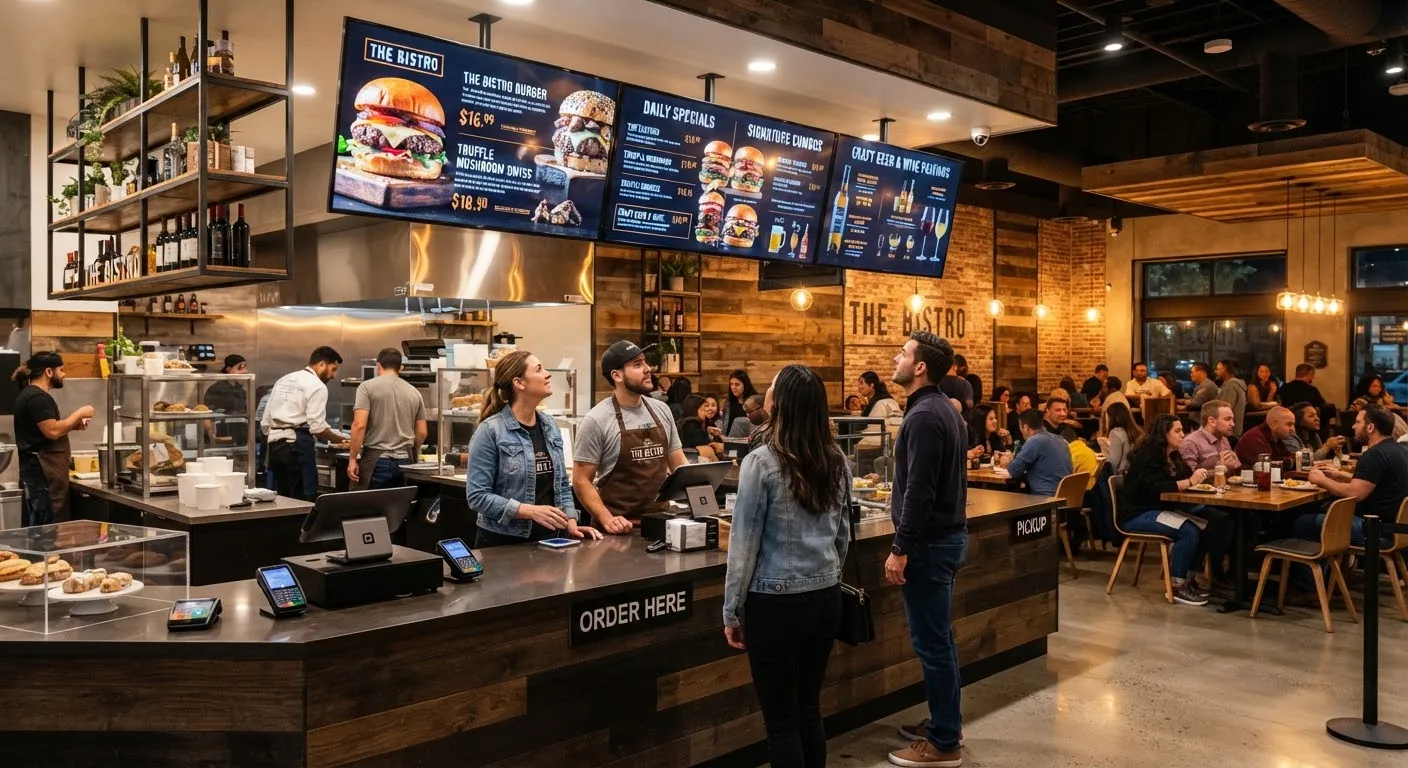
Street Burger, a restaurant chain with eight branches in Sri Lanka, runs every screen in every branch on SignageTec. Before going digital, a new burger, price change or weekend offer meant printing and fitting new menus and posters at every branch. Now the team updates content once in the cloud and it appears on every screen in every branch within minutes. Scheduled slides switch the menu through the day without staff touching the screens.
Common mistakes to avoid
- Mixing systems. Different software in different branches means no single view. Put every screen on one account.
- No naming plan. “Screen 1” to “Screen 40” is impossible to manage. Name screens by branch and position, such as “Leeds – Window Left”.
- Too many people publishing. Keep publishing rights small and use approvals for everyone else.
- Forgetting the end date. Always give campaigns an end date so out-of-date offers do not linger.
Common questions
Do I need the same screens in every branch? No. One account can run a mix of Android TVs, media players and commercial displays. Content adapts to each screen’s layout.
Can a branch show something different from the others? Yes. Send content to just that branch, or give branch staff a local zone on the screen.
What does a branch need to get started? A screen with our app installed (or a media player), power and an internet connection. Most screens pair to your account with a short PIN code.
Is it worth it for just two or three sites? Usually, yes. Even with a few branches, updating once instead of visiting each site saves time and keeps prices consistent.
Try it on your own branches
SignageTec’s multi-site screen management lets you run every screen in every branch from one dashboard. If you already have Android TVs, you can install our app and start a 14-day free trial, or talk to us about screens and installation for your branches.