Many businesses assume digital signage means buying expensive new screens. Often it does not. If you already have a TV in your shop, reception or staff room, you can usually turn it into a digital sign in a few minutes by installing a player app and connecting it to cloud software.
Most SignageTec customers start this way: they install our app on an Android TV they already own and manage it from a web browser. This guide explains how it works, which devices you can use, and when it is worth upgrading to a commercial display.
What makes a TV a “digital sign”?
A TV on its own just shows whatever is plugged into it. To become digital signage it needs two things:
- A player. An app running on the TV itself, or on a small device plugged into it, that downloads your content and plays it on a loop or schedule.
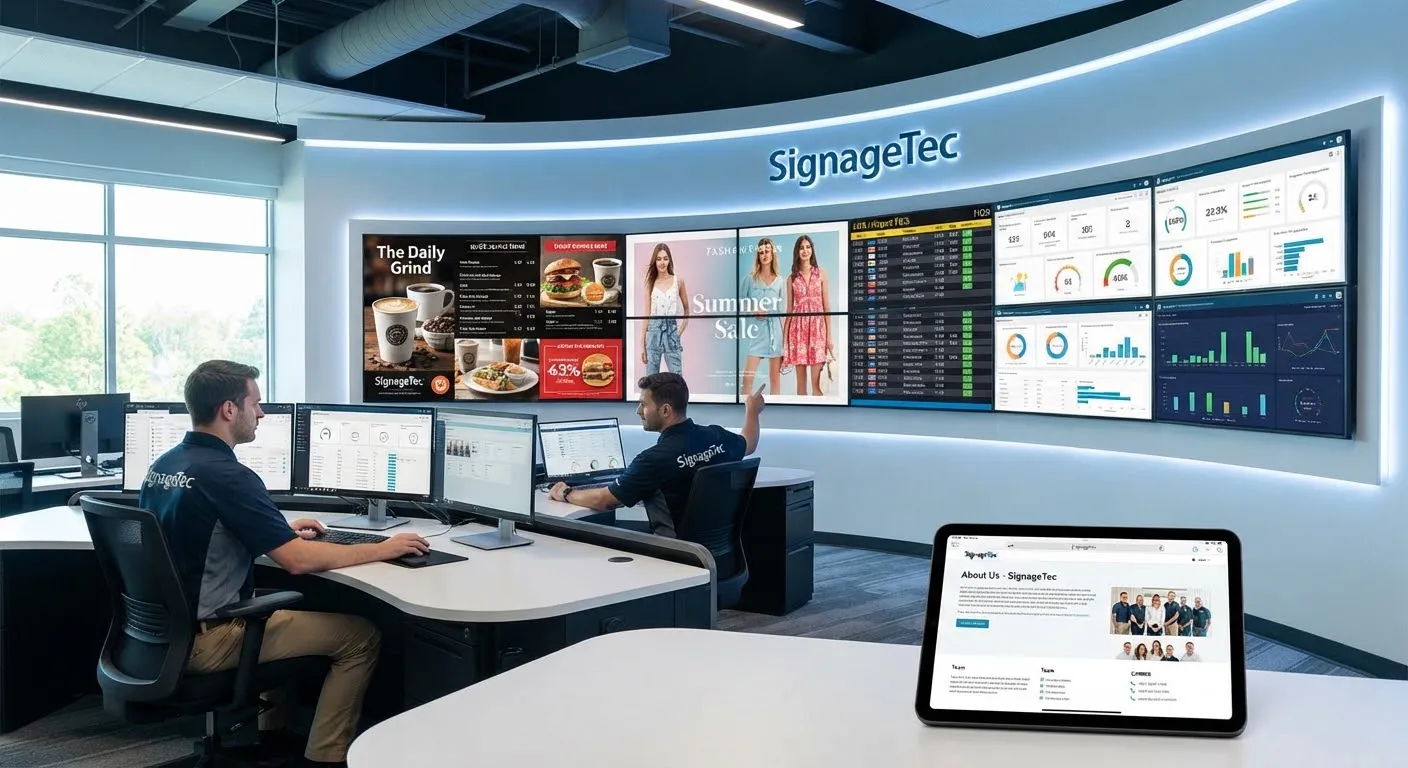
- Cloud software. A dashboard you log in to from any browser to upload content, build playlists, set schedules and see what each screen is showing.
The player and the software talk to each other over the internet. You change content in the dashboard, and the TV updates on its own.
Which TVs and devices work?
The SignageTec player runs on:
| Device | Good for |
|---|---|
| Android TV (Android TV OS 8.0 and later, for example many TCL and Sony TVs) | The easiest start. Install the app directly on the TV. |
| Amazon Fire TV Stick 4K | Any TV with a spare HDMI port, including TVs that are not “smart”. |
| Windows PC (Windows 10, 11 or IoT Enterprise) | Screens already driven by a PC, or reception and office screens. |
| Raspberry Pi 4 or Pi 5 | A low-cost, small player you can tuck behind a screen. |
| Samsung Tizen (Smart Signage SSSP) | Samsung commercial displays with the player built in. |
| LG webOS | LG commercial displays with the player built in. |
If your TV is not smart and not Android, a small plug-in player like a Fire TV Stick or a digital signage media player connects it to the software.
How to set it up
1. Install the player app
On an Android TV or Fire TV, install the SignageTec player app on the TV or stick. On Windows or Raspberry Pi, install the player on the computer connected to the screen. If you are not sure which version you need, ask us and we will point you to the right one.
2. Pair the screen
When the app opens, it shows a 6-digit pairing code on the screen. Log in to your SignageTec dashboard, add a new screen and type in the code. The TV is now linked to your account. There is no IP address or network setting to configure.
3. Send it some content
Upload an image or video, or start from a template. Add it to a playlist and assign the playlist to the screen. Within moments it appears on the TV.
4. Set a schedule
Decide what plays when. A café might show breakfast items until 11am and lunch after that. A shop might switch the screen off after closing time.
That is it. From then on you manage the screen from your laptop or phone and never need to touch the TV.
Tips for a reliable set-up
- Turn off TV sleep and eco settings. Consumer TVs often switch themselves off after a few hours without a remote press. Set the TV to stay on, or use the player’s schedule to control it.
- Set the app to launch on start-up. After a power cut, the screen should go straight back to your content, not the TV home screen.
- Use a wired connection if you can. Wi-Fi works, but a network cable is more dependable for screens that never move.
- Check the picture mode. Switch off motion smoothing and “vivid” modes so text and colours look as you designed them.
- Hide the cables. A tidy install looks far more professional to customers.
Because the player stores content locally, the TV keeps playing if the internet drops and picks up changes when it comes back.
When a normal TV is fine, and when it isn’t
A TV you already own is a good choice for:
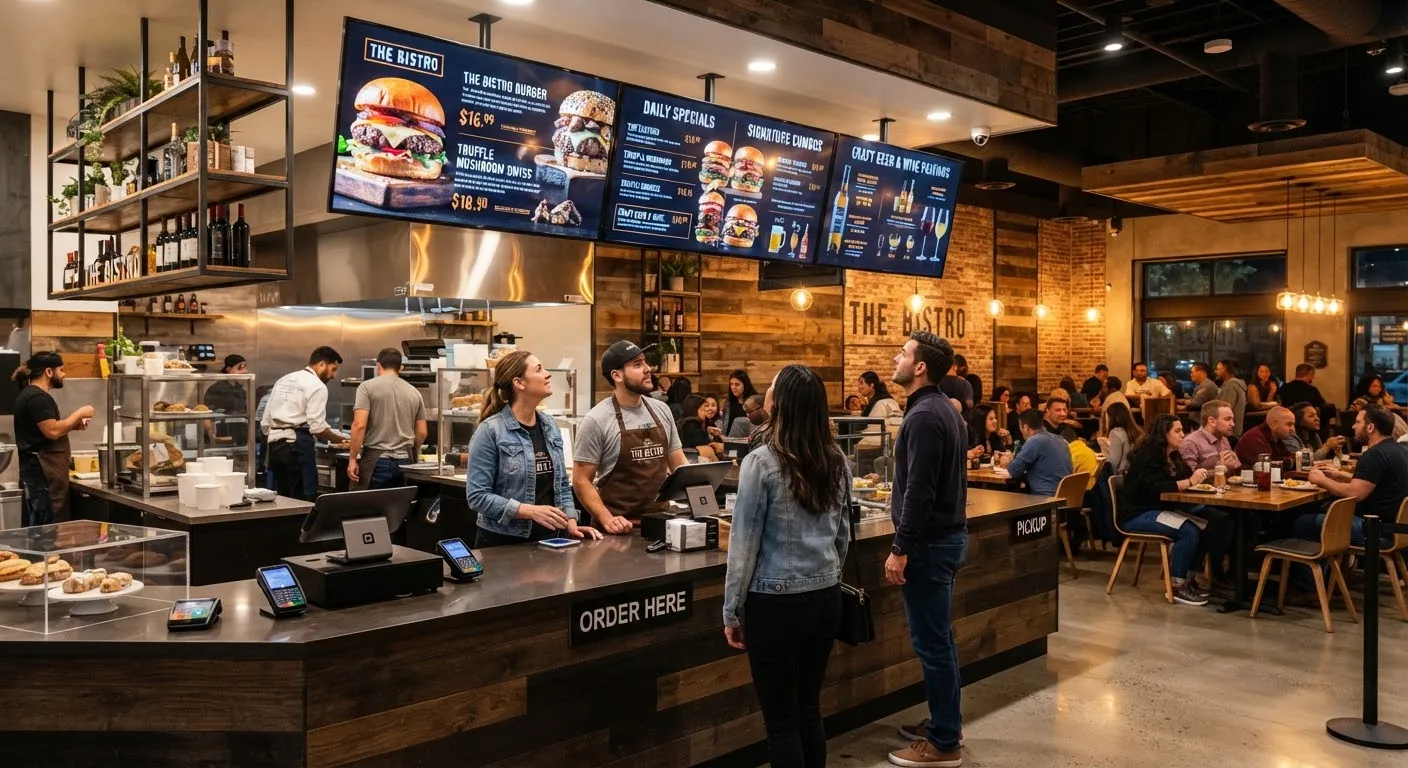
- Menu boards and promotion screens inside a café, restaurant or shop.
- Receptions, waiting rooms and offices.
- Staff rooms and internal notices.
- Trying digital signage before deciding where to invest.
Consider a commercial display instead when:
- The screen faces a window. Ordinary TVs look washed out in sunlight behind glass. A high-brightness window display stays readable.
- It runs very long hours. Commercial panels are built to run all day, every day. Consumer TVs may not be, and their warranty may not cover commercial use.
- It is outdoors. You need a weatherproof outdoor display.
- You want portrait screens or video walls. Commercial screens are designed for portrait mounting and tiling.
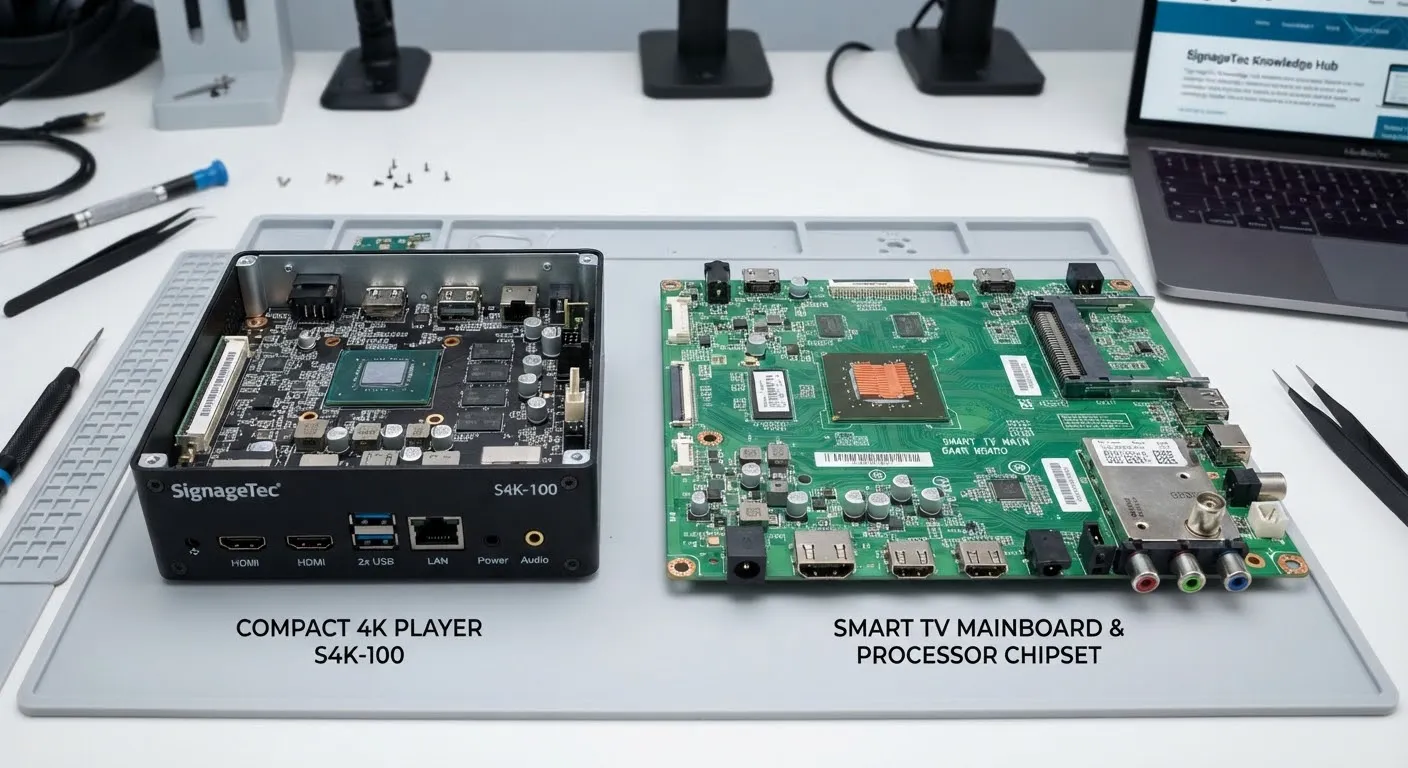
Our guide on media players explains the hardware side in more detail.
Common questions
Do I have to buy hardware from SignageTec? No. Buying hardware is optional. If you already have an Android TV you can install our app yourself. If you want new screens or a media player, we can supply and install them.
Can I mix my own TVs with commercial screens? Yes. Every screen appears in the same dashboard, whatever it runs on.
Does the TV need internet all the time? It needs internet to receive new content, but it keeps playing what it already has if the connection drops.
Can I manage TVs in more than one location? Yes. Every paired screen, in any building, appears in one account. See how to manage screens across branches.
Start with the TV you already have
SignageTec’s digital signage app for TVs turns an Android TV, Fire TV Stick or PC into a managed screen. Start a 14-day free trial, or talk to us if you would like help choosing screens.