Cloud-based software is what turns a screen into digital signage. It lets you control what every screen shows, wherever it is, from a web browser. This guide explains how it works in plain terms and what to look for when choosing a system.
The basic idea
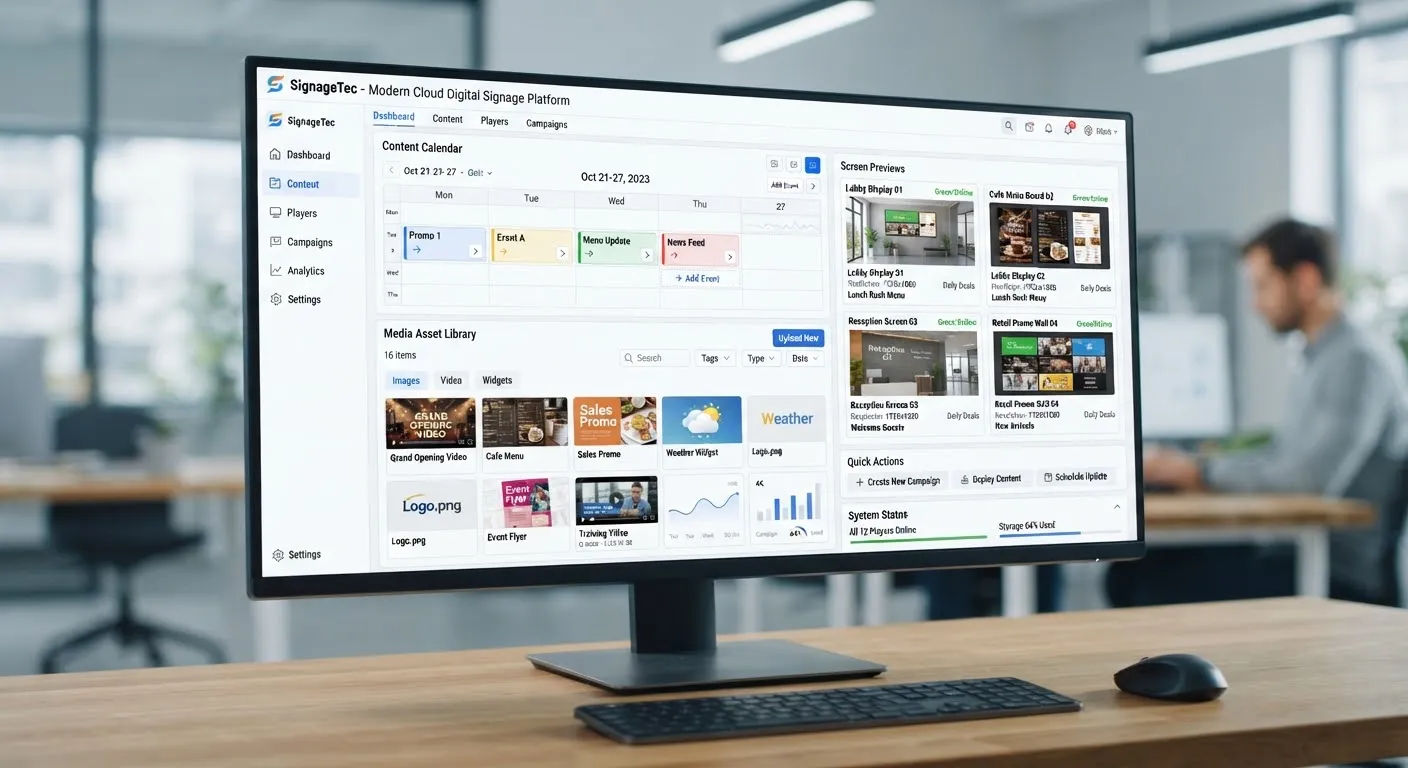
With cloud digital signage, your content and settings live on the software provider’s servers rather than on a computer in your building. You log in through a web browser, upload content, decide which screens should show it and when, and the software sends it to the media player connected to each screen.
There is nothing to install on your own computers and no server to look after. You can manage screens from the office, from home or from your phone.
Step by step
1. Upload your content
You add images, videos, PDFs or presentations to a media library. Many systems also let you create content directly using templates and a simple editor, so you can add text, prices or logos without design software.
2. Build layouts
A layout divides the screen into zones. For example, a main area for promotions, a strip along the bottom for news or a ticker, and a corner for the time or weather. Simple screens may use a single full-screen zone.
3. Create playlists
A playlist is the sequence of content a screen shows, with a duration for each item. You might have a “lunch” playlist and an “evening” playlist, or a playlist for each department.
4. Schedule
Schedules decide which playlist plays on which screens and when. This is how screens switch automatically between breakfast and lunch menus, or start a promotion on Friday and end it on Sunday night. See how to schedule content across locations.
5. Publish
When you save your changes, the software sends updates to the relevant media players. Each player downloads the content and stores it locally.
What happens if the internet goes down?
Because players store content locally, they keep playing the last content they received. When the connection returns, they check for updates. This is why a good system never leaves a screen blank just because the Wi-Fi has a problem.
Managing many screens
Cloud software becomes even more useful as you add screens and sites.
- Groups and tags let you send content to “all windows”, “all London branches” or “all menu boards” in one go.
- User permissions let head office control brand campaigns while branch managers update local notices.
- Approval workflows can require content to be checked before it goes live.
- Monitoring shows which screens are online and alerts you if one stops responding.
- Remote control lets you restart a player, adjust volume or turn a screen on and off without visiting the site.
Live data and integrations
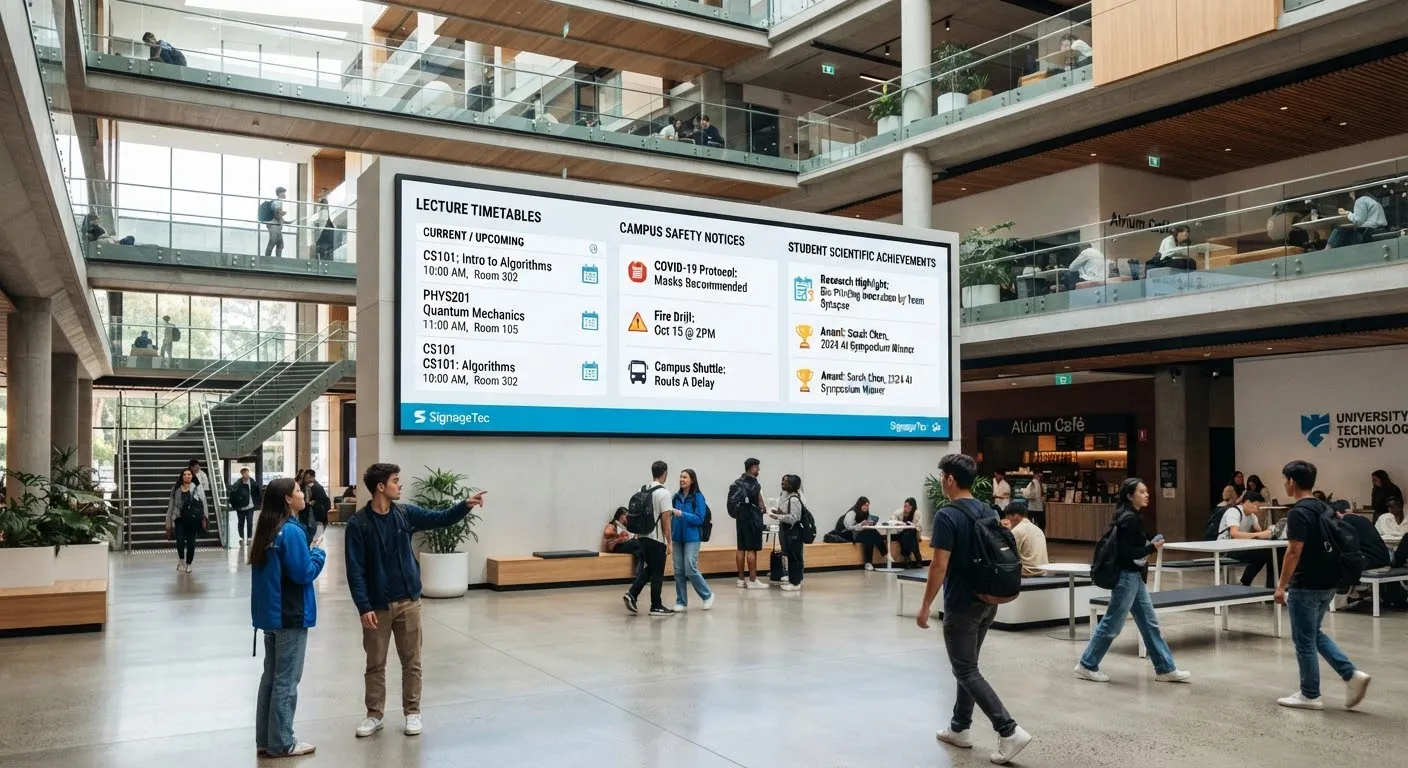
Many systems can display information that updates automatically, such as:
- Currency rates, prices or menus from a spreadsheet or data feed.
- Social media posts or reviews.
- News, weather and travel updates.
- Calendars and room bookings.
- Dashboards and performance figures for staff.
This keeps screens fresh without manual updates.
Security considerations
Ask any provider how they protect your account and content. Look for secure log-in, the ability to remove users when they leave, control over who can publish content and clear information about where your data is held.
Choosing software
When comparing systems, consider:
- How easy it is for your team to use day to day.
- Whether it supports the screens and players you plan to buy.
- Scheduling, templates and user permissions.
- Offline playback.
- Support availability and how it is provided.
- Total cost for the number of screens you need.
Getting started
SignageTec provides cloud software alongside our displays and media players, and we help you set up your first layouts, playlists and schedules. See how different sectors use it on our industries page, or book a demo.