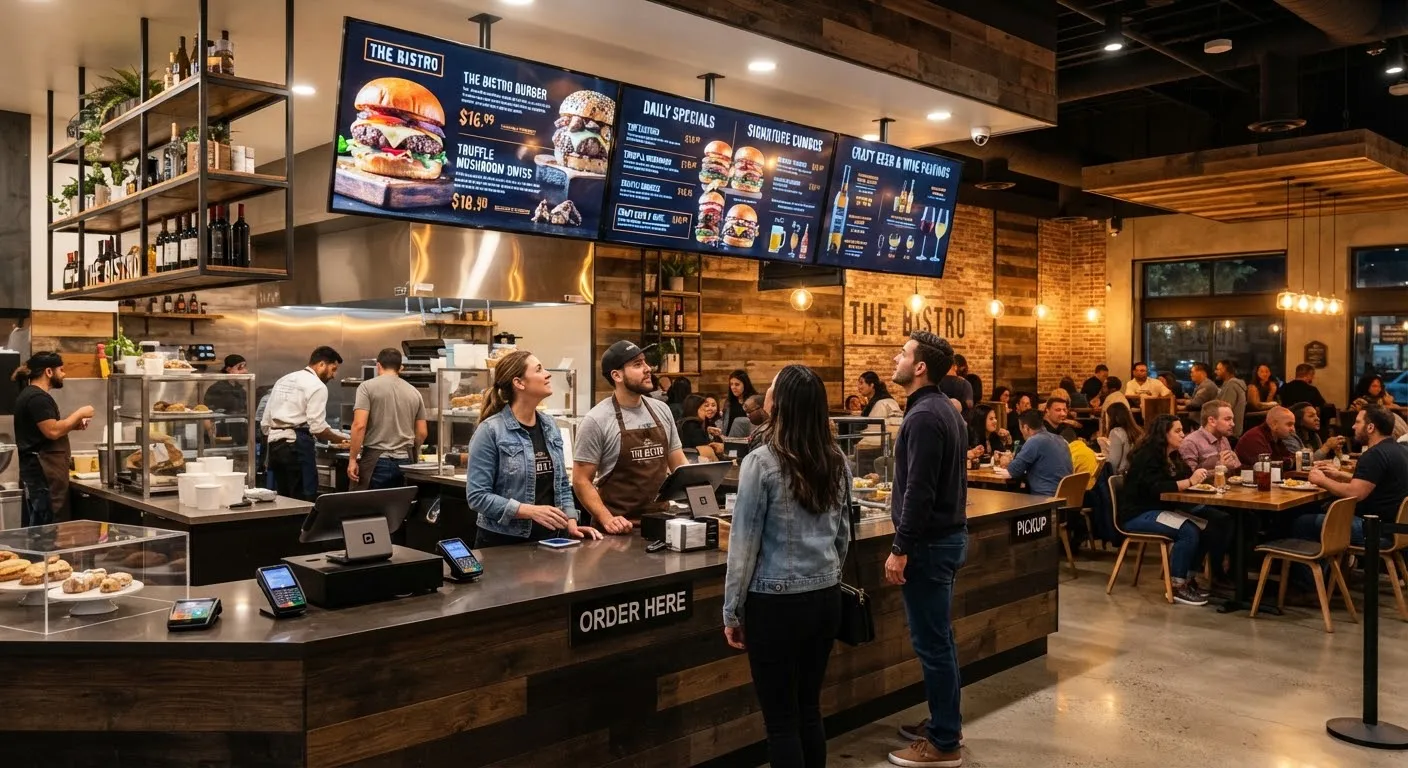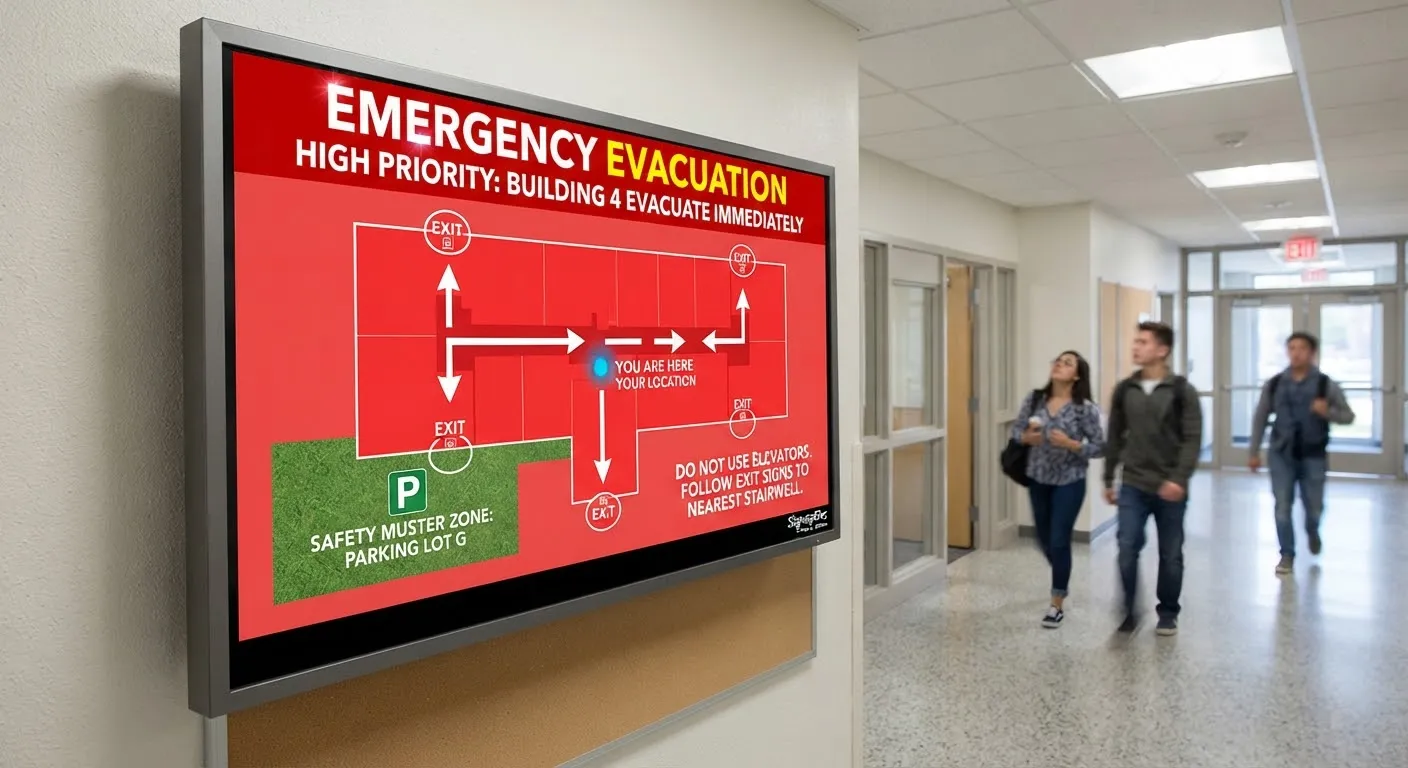
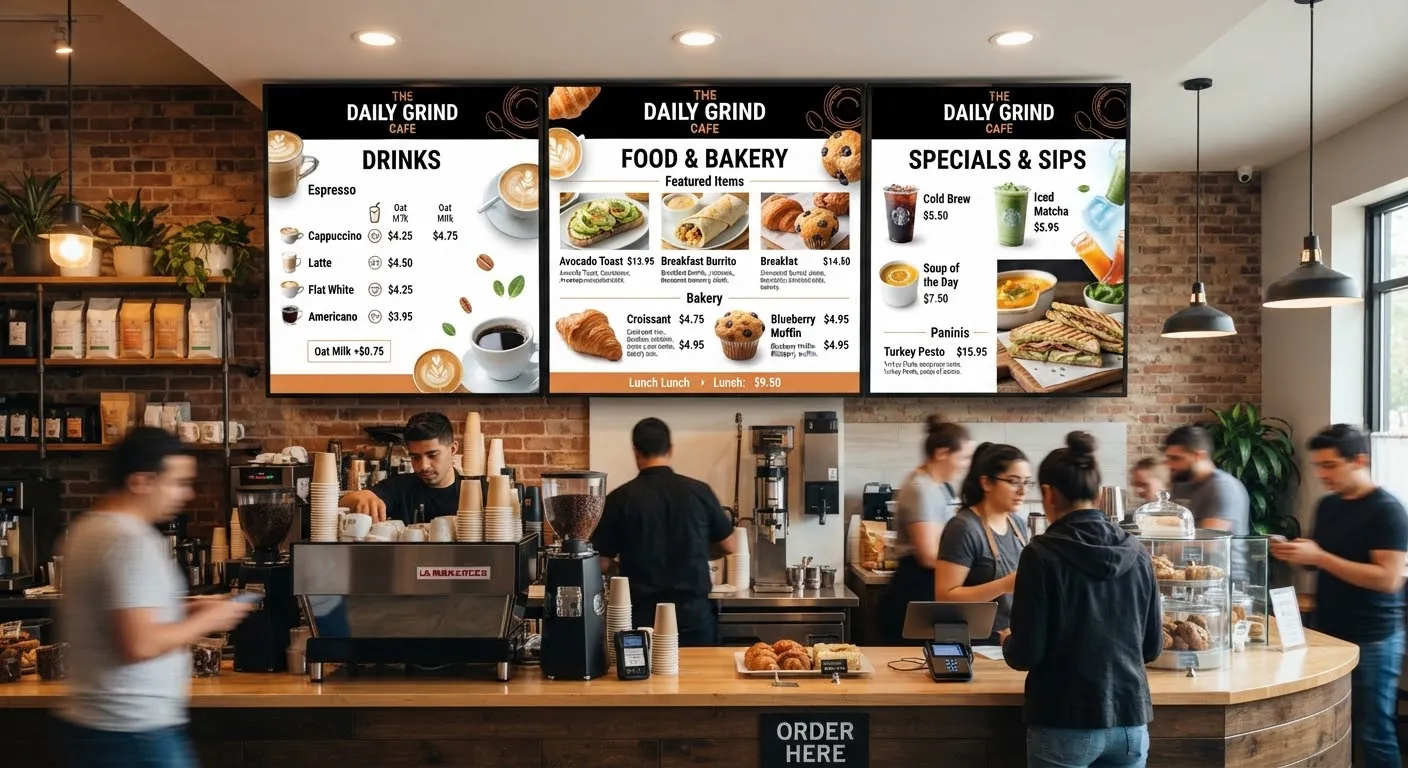
Once you have more than a handful of screens, scheduling becomes the key to managing digital signage well. A good schedule means the right content appears on the right screens at the right time, automatically, without anyone visiting each site. This guide explains the building blocks and how to organise scheduling across several locations.
The building blocks
Content items
Individual images, videos, templates and live-data elements.
Playlists
A playlist is a sequence of content items with a duration for each. For example, a “Breakfast” playlist, a “Lunch” playlist and a “Brand” playlist.
Schedules
A schedule decides which playlist plays on which screens, on which days and at which times.
Screen groups
Groups let you target many screens at once, such as “All windows”, “All menu boards”, “Scotland branches” or “Airport stores”.
Dayparting
Dayparting means changing content by time of day. It is one of the most useful scheduling features:
- Cafés and restaurants switch between breakfast, lunch and evening menus.
- Retailers target commuters in the morning and families at weekends.
- Offices show different messages for each shift.
- Gyms promote morning classes early and evening classes later.
Set it up once and screens change automatically every day.
Start and end dates
Every promotion should have an end. Setting start and end dates on content means:
- A Black Friday offer appears at midnight and disappears when the sale ends.
- A temporary closure notice is removed automatically.
- Nobody has to remember to take things down.
Priorities and overrides
Most systems let you set priorities, so that:
- Urgent messages override everything else on selected screens.
- Campaigns take precedence over everyday brand content.
- Default content plays whenever nothing else is scheduled, so screens are never blank.
Organising screens across locations
Create a clear naming system
Name each screen by site and position, for example “Leeds – Window Left” or “Bristol – Counter 2”. It makes scheduling and troubleshooting far easier.
Group in more than one way
A single screen might belong to several groups: its region, its store type and its position. This lets you target “all window screens in the North” in a single step.
Use tags for flexibility
Tags such as “has drive-thru”, “city centre” or “late opening” let you schedule content to the stores where it is relevant.
Head office and local control
Many businesses split responsibility:
- Head office schedules brand campaigns and national promotions.
- Regional teams add regional offers.
- Local managers add local events, staff news or opening hours within approved templates.
User permissions control who can publish to which screens. Approval workflows can require head office to check local content before it goes live.
Building a content calendar
Plan the year ahead with key dates, campaigns and seasonal changes. Load content into the schedule weeks in advance, then review it monthly. Our seasonal campaign ideas can help you get started.
Check it is working
- Preview schedules before publishing to see exactly what each screen will show.
- Use monitoring to confirm screens are online.
- Ask local staff to report anything that looks wrong.
- Review what is playing regularly and remove anything outdated.
Common mistakes to avoid
- No default content, leaving screens blank between campaigns.
- Too many overlapping schedules, making it hard to know what will play.
- Forgetting end dates, leaving expired offers on screen.
- Designing for one orientation only, when sites have portrait and landscape screens.
Getting started
SignageTec’s cloud software makes scheduling across locations straightforward, and we help you set up groups, playlists and templates. Read how cloud digital signage software works, see our industries page, or book a demo.