Digital signage should work for everyone who visits your premises, including people with visual, hearing, mobility, cognitive or learning impairments. Accessible design is not just the right thing to do; it also makes screens clearer and more effective for every viewer. This guide covers practical steps you can take.
Why it matters
Many people have a disability, and many more have temporary or age-related difficulties with sight, hearing or mobility. Under the Equality Act 2010, service providers have a duty to make reasonable adjustments so disabled people are not put at a substantial disadvantage. What counts as reasonable depends on your circumstances, so take advice if you are unsure about your obligations.
Placement and height
- Mount screens where they can be seen from both standing and seated positions, including by wheelchair users.
- Avoid placing important screens where glare from windows or lights makes them hard to read.
- Do not let screens, stands or cables obstruct walkways or create trip hazards.
- Keep freestanding screens and kiosks out of the way of people who are blind or partially sighted moving through a space.
Text and readability
- Size: use large text that can be read from the expected viewing distance.
- Fonts: choose clear, sans-serif fonts and avoid thin, condensed or decorative typefaces.
- Contrast: use strong contrast between text and background. The Web Content Accessibility Guidelines (WCAG) recommend a contrast ratio of at least 4.5:1 for normal text, a useful benchmark for screens too.
- Background images: avoid placing text directly over busy images.
- Language: use plain English and short sentences.
Colour
- Do not rely on colour alone to convey meaning. For example, add icons or words to red and green status indicators.
- Choose colour combinations that remain distinguishable for people with colour vision deficiency.
Timing and motion
- Give people enough time to read each slide. Information-heavy slides need longer.
- Avoid content that flashes more than three times per second, which can trigger seizures in people with photosensitive epilepsy.
- Keep animation purposeful and avoid constant movement behind text.
Sound and video
- Add captions to any video with speech.
- Do not rely on audio alone for important messages; show them visually too.
- Keep background audio at a comfortable level, or avoid it in quiet spaces.
Touch screens and kiosks
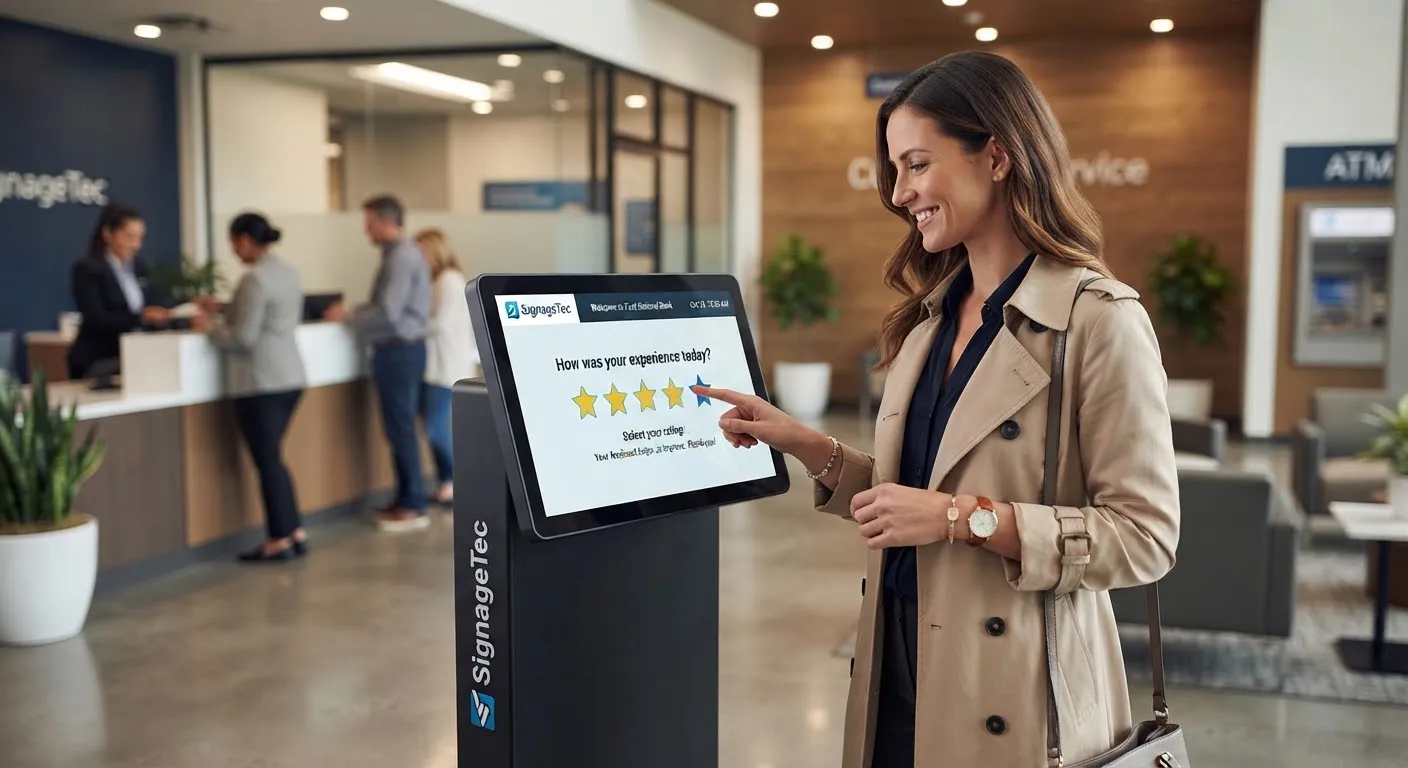
- Position interactive areas at a height reachable from a seated position.
- Use large buttons with clear labels and good spacing.
- Provide audio or alternative options where possible, and make sure there is another way to get the same service, such as help from staff.
- Avoid time-outs that are too short for people who need longer.
See our guide to customer feedback kiosks for more on touch screen design.
Emergency messages
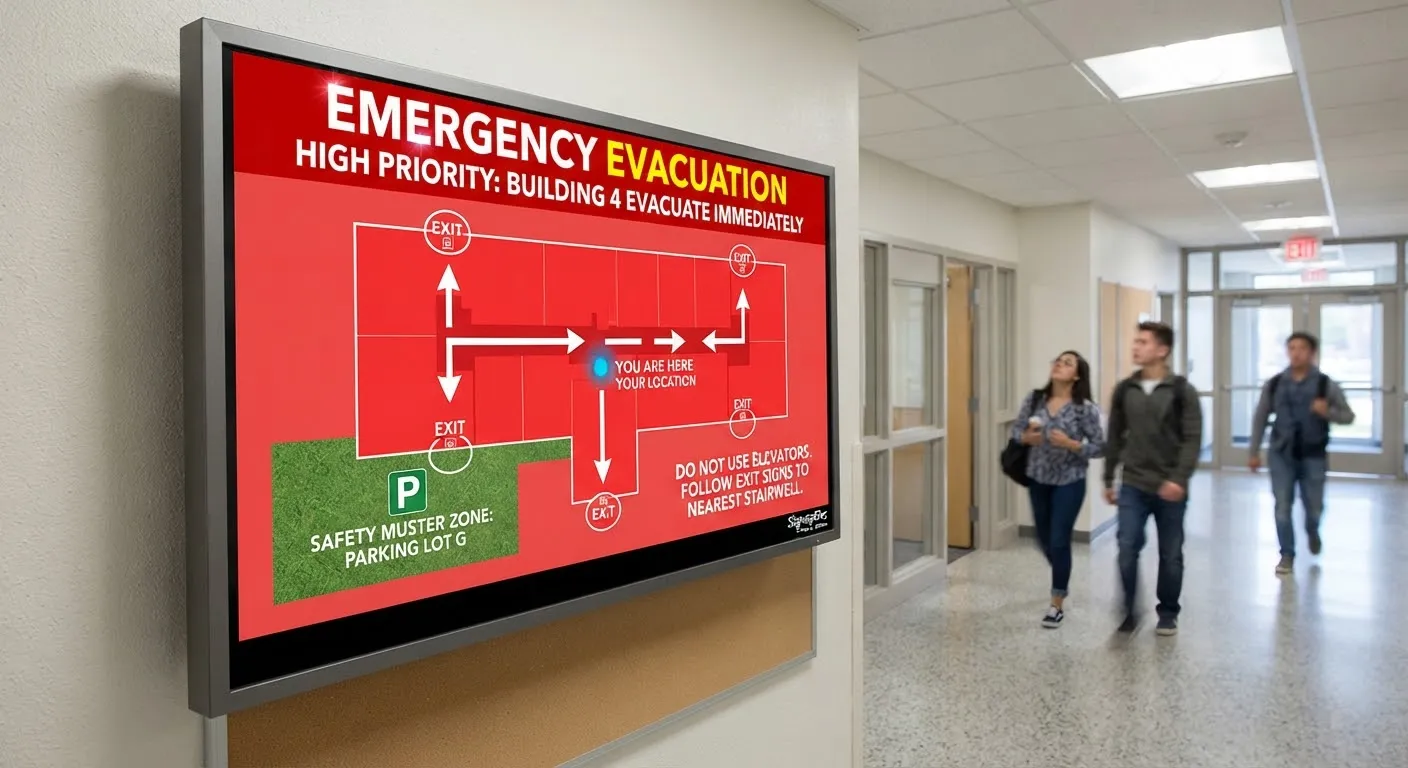
Visual alerts on screens help people who are deaf or hard of hearing during emergencies, alongside audible alarms. See campus emergency alerts.
Wayfinding
Clear, consistent directions with step-free route options help everyone. Read our guide to digital wayfinding.
Test with real people
The best way to check accessibility is to ask people with different needs to try your screens and content. Staff feedback is valuable too.
Quick accessibility checklist
- Readable from where people stand or sit?
- Strong contrast and large, clear text?
- Meaning not shown by colour alone?
- No rapid flashing?
- Captions on video?
- Touch screens reachable and easy to use?
- An alternative way to get the same information?
Getting started
SignageTec can help you choose screens, kiosks and placement that work for all your visitors, and design accessible content templates. See examples on our industries page, or contact us for advice.